
# Notes Library
It is used to store the commonly used annotation symbols and texts in engineering drawings, and supports input, call, delete, find, etc.
Click the knowledge base list on the right side of the graphic viewport to view all the contents of the personal knowledge base. The top half displays the default detailed list. After double-clicking on the name of the list, all annotations in this list will be displayed in the "Details Panel".
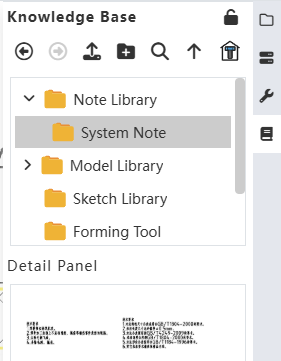
| ICONS | Name | Instructions |
|---|---|---|
 | Back Off | Exit the currently selected library and close the display in the Details panel |
 | Forward | Open the selected library and display the current library information in the details panel |
 | Add to library | Add comments to library, support comments, surface roughness, form and position tolerances |
 | New folder | After selecting the library, create a new folder in the lower part of the library; Do not select the library, create a folder in the top layer, and maintain the same relationship with the original folder |
 | Search | Searchable folder name, file name |
 | Return to previous level | Return to the parent folder of the current folder, and the details panel is updated synchronously |
 | Standard Part Library | Open the Standard Part Library. |
# Add To KnowledgeBase
- Method 1
Select the desired symbol or comment in the project drawing viewport and right-click to bring up the right-click menu.
Select "Add to Knowledge Base" from the pop-up right click menu, and the"Add to Knowledge Base" dialog box will be displayed.
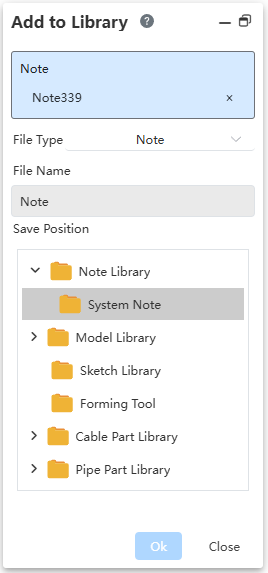
Note: Enter the element to be saved to the library. Supported types include Notes, Surface Roughness, and Geometric Tolerances.
File Type: Select Annotation.
File Name: Enter the file name. This is a required field. The default name is "Annotation 1".
Save Position: Select the storage folder in the Knowledge Base Folder Structure Tree.
- Method 2:
- Click the "Add to Library" icon in the knowledge base to bring up the Add to Library dialog box.
- The remaining operations are the same as in Method 1.
# Note Library Call
- Click Knowledge Base in the right side of the software thumbnail, the knowledge base interface pops up.
- Double-click the target folder, "Details panel" display all the annotation information saved under the current folder
- Drag and drop the content to be added to the viewport. Attach the content to the mouse icon and move with the mouse.

- Click on the appropriate position of the project drawing to realize the annotation content placement, then pop up the Insert annotation dialog box.
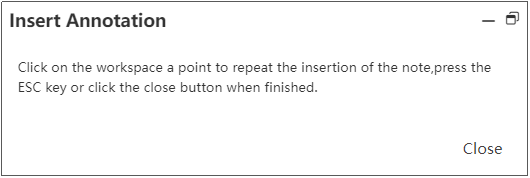
- After finishing the placement, the preview effect of the selected comment will appear at the mouse icon. Click in the blank position of the project drawing to continuously place the selected comment.
- In the dialog box, click Close to end the annotation insertion, and press Esc key to end the annotation insertion.
- Double-click the placed comment and enter the editing state according to the comment type. If the comment is shape and position tolerance, open the editing dialog box of behavior tolerance.
- When a view element that can be added is pre-picked during placement, the element is highlighted.
- Deleting annotations from the library does not affect the annotation effect that has been applied in the current view or other documents.