
# Mate Standard

Part: Select a point, line, or plane on two different parts.
Mate Type:
According to the different elements on the selected part, the system will filter out the applicable fit types. If there is more than one fit type, the first applicable fit type will be previewed by default. You can manually switch other fit types. The applicable element types for different fit types are as follows:
(1) Coincidences: points, lines, circles/arcs, curves, planes, cones, cylindrical, spherical, datum line, datum plane, coordinate system
(2) Parallel: straight, flat, conical, cylindrical, datum line, datum plane
(3) Tangency: straight, circular/circular arc, planar, conical, cylindrical, spherical
(4) Coaxial: point, line, conical, cylindrical, spherical
(5) Vertical: straight, planar, conical, cylindrical, datum line, datum plane
(6) Distance: point, line, plane, cone, cylindrical, datum line, datum plane
(7) Angles: straight, flat, conical, cylindrical, datum line, datum plane
Example:
Click
 to Mate;
Select the graphic elements of the two parts in turn (in the absence of fixed constraints on the parts, the first part selected by default is displayed semi-transparently and its position changes according to the type of fit);
You can select the fit type and then the graphic element, or you can select the fit type first and then select the graphic element of the part;
According to the preview in the alignment type to choose whether to reverse;
Click "OK" to complete the operation.

Coordinate system instructions:
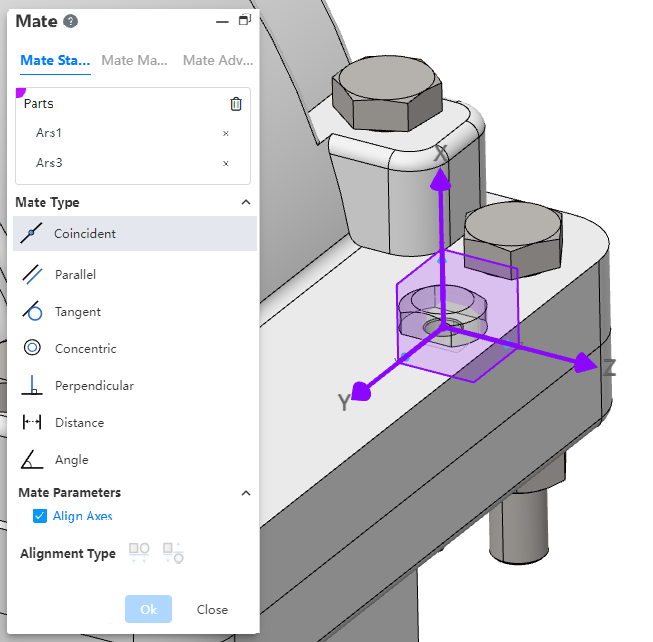
- Pick up the coordinate system with other elements, and coordinate the origin with other elements.
- Pick up two coordinate systems and display the Alignment Axis option when selecting the "Overlap" type. Check "Align Axes" so that the two coordinate systems coincide exactly.
← Mate Mate Machine →