
# Library
# Derivative Library
The Derivative Library supports "checking in models with variables" and "checking out models with modified variables" for variable-driven models. Through variables, rapid design variations and drawing generation of models and their engineering drawings can be achieved.
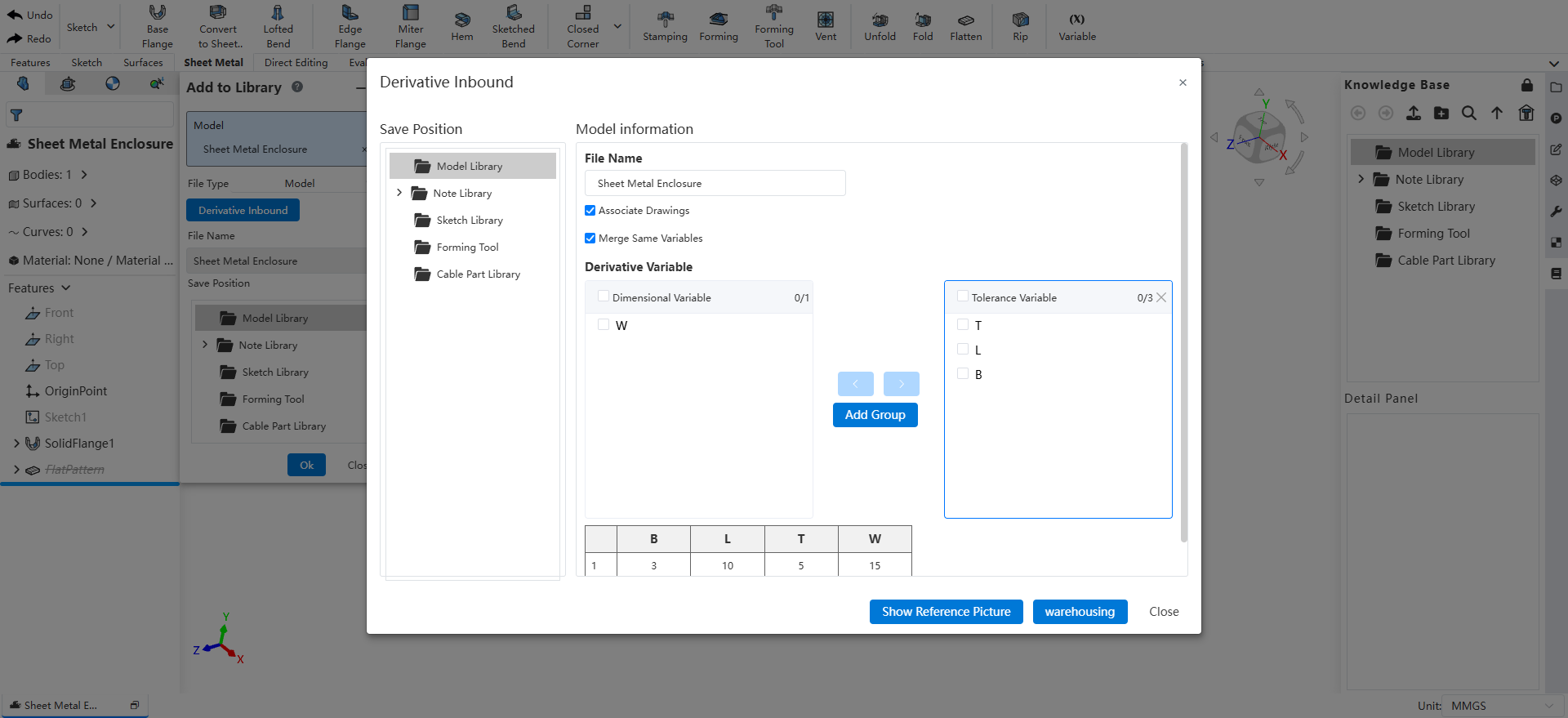
# Derivative Inbound
Usage:
- Open the model to be checked in. Note that the model must contain variables.
- Open the Knowledge Base panel on the right and click "Add To KnowledgeBase".
- Select the current document.
- Click the "Derivative Inbound" button. The "Derivative Inbound" dialog will appear.
- Set the name, parameters, and other check-in information in the dialog.
- Click "warehousing".
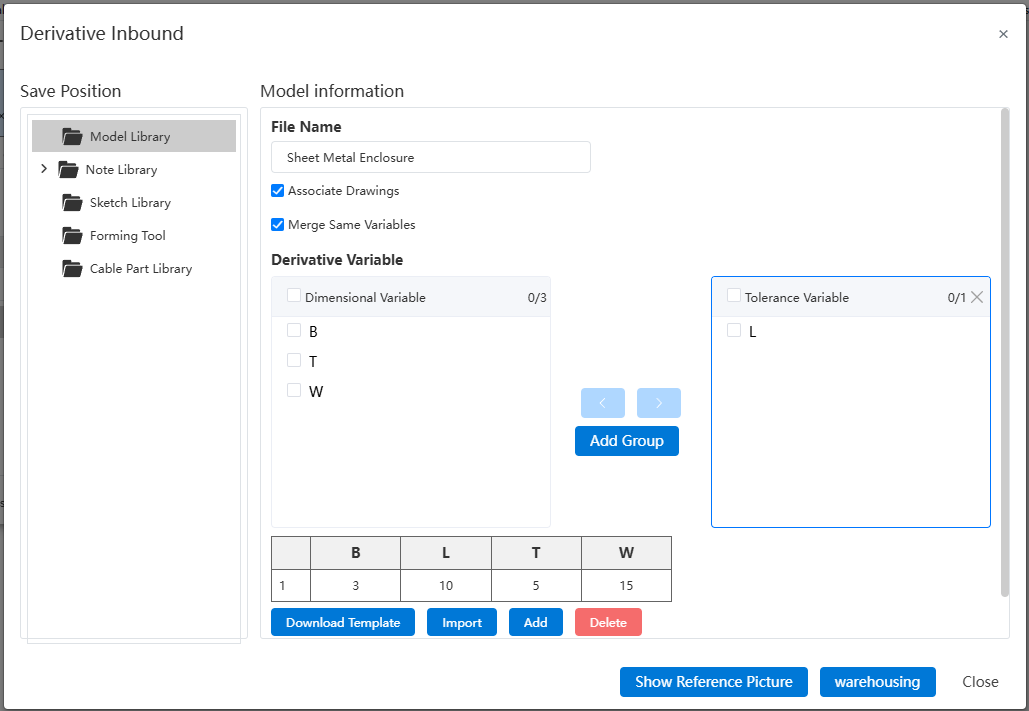
Dialog Control Description:
Save Position: Used to select the location in the Knowledge Base where the model will be saved.
Model information: Used to specify the name of the model after it is saved in the Knowledge Base.
Associated Drawing: Check this option to check in the engineering drawing together with the model, enabling synchronized drawing output during check-out. Uncheck this to check in only the model without the engineering drawing.
- The associated drawing is identified by matching the name of the drawing with the model. The search scope is the project to which the top-level assembly belongs.
- If only one drawing with the same name as the checked-in model exists in the project, that drawing is selected.
- If multiple drawings with the same name as the checked-in model exist in the current project, the drawing located in the same folder as the model document is selected.
- If multiple drawings with the same name exist in the current project but none are in the same folder as the model document, only the model is checked in, and the bound drawing field will be empty.
- If no drawing with the same name as the model exists, only the model is checked in.
- If the checked-in model is an assembly, the engineering drawings of its sub-assemblies and parts are automatically searched and checked in together. The search scope is the project to which the top-level assembly belongs.
Merge Same Variables: Controls whether variables with the same name in different components within an assembly are merged. Check this option to merge and control identical variable names across components. Uncheck this to set variables for each component individually.
Derivaive Variable: Displays all variables.
The "Add Group" button allows creating variable groups for grouped management.
Check variables and click the left/right buttons to move them between groups.
Download Template: Downloads a table template for convenient handling of large sets of variable parameters.
Import: Uploads the modified table to quickly create variables.
Add: Manually adds a set of variables. Parameters from the added set can be selected during check-out.
Delete: Deletes a set of variables.
Show Reference Picture: Used to upload and modify reference images. Reference images are displayed during check-out.
warehousing: Performs check-in with the current parameters.
Close: Cancels check-in and closes the dialog.
# Derivative Model Management
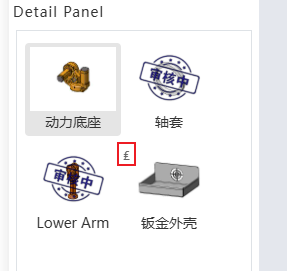
Open the Knowledge Base panel on the right. A badge  will be displayed in the upper-left corner of derivative models.
Right-click a derivative model to manage it.
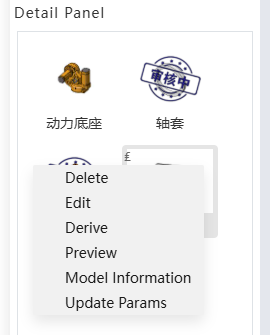
| Menu Item | Description |
|---|---|
| Delete | Deletes the model, including its associated engineering drawings. |
| Edit | Opens a new document to edit the model content. |
| Derie | Derives this model. This function must be used within an assembly. |
| Preview | Previews the model in read-only mode in a new tab. |
| Model Information | Displays model information; allows modifying the associated engineering drawing. |
| Update Parameters | Modifies model variable parameters. |
Dialog Control Description:
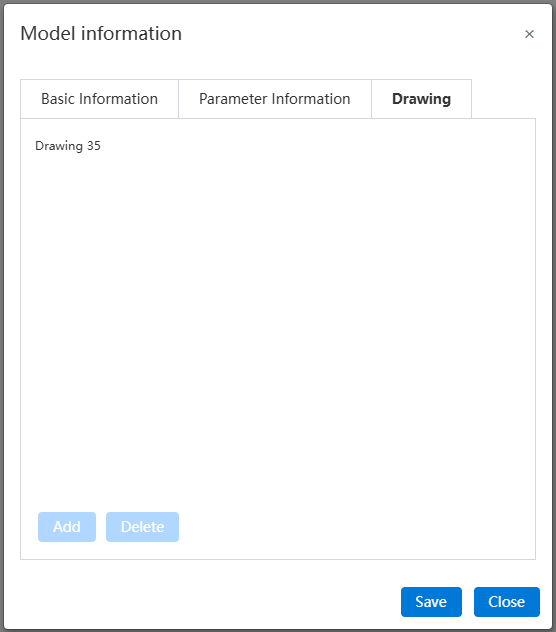
· Basic Information, Parameter Information: View related information only.
· Drawing: View and modify the drawing associated with the model.
· Add: Available when no drawing is associated. Adds an associated drawing.
· Delete: Available when an associated drawing is selected. Deletes the associated drawing.
· Save: Saves the current settings.
· Close: Closes the dialog.
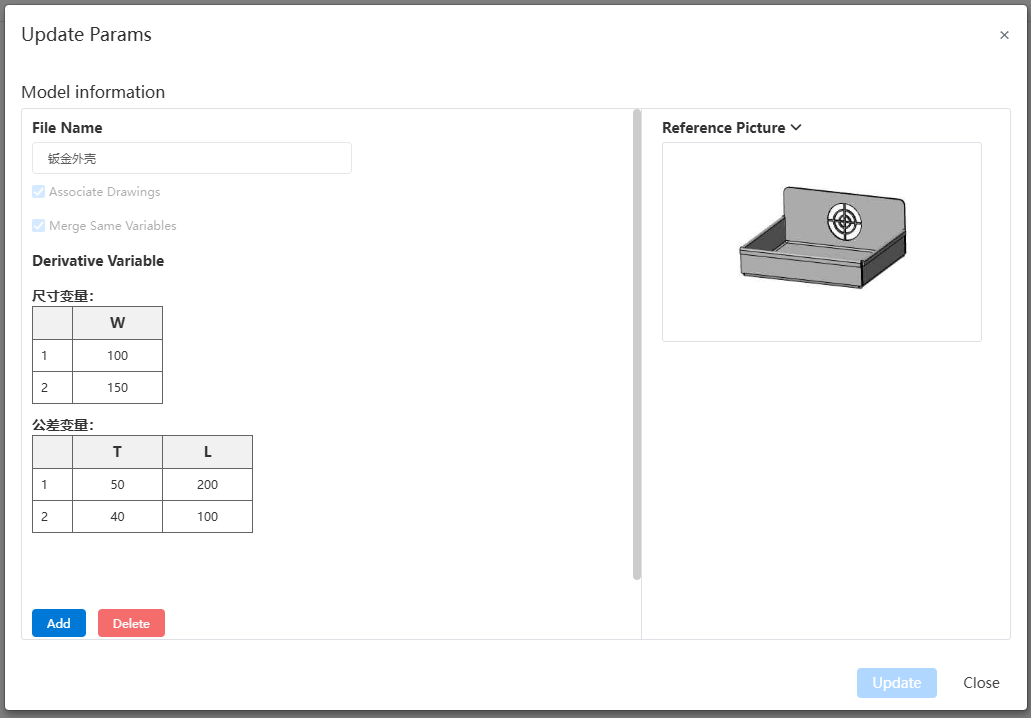
· Model information, Associated Drawing, Merge Same Variables, Reference Picture: Information set during model check-in. For viewing only and cannot be modified here.
· Variables: Displays the variables in the model, grouped.
· Add: Adds a new set of parameters.
· Delete: Deletes a set of parameters.
· Derivative: After selecting parameters, click this button to derive a model based on the selected parameters and insert it into the current assembly.
· Update: Updates the model parameters.
· Close: Closes the interface.
# 1.1.3 Derivative Model
Usage:
- Open an assembly.
- Open the Knowledge Base panel and locate the model to derive.
- Right-click and select "Derivative".
- In the pop-up dialog, select the parameters for derivation.
- Click the "Derivative" button and wait for the model to be generated.
- Click in the assembly to insert the model.
Dialog Control Description:
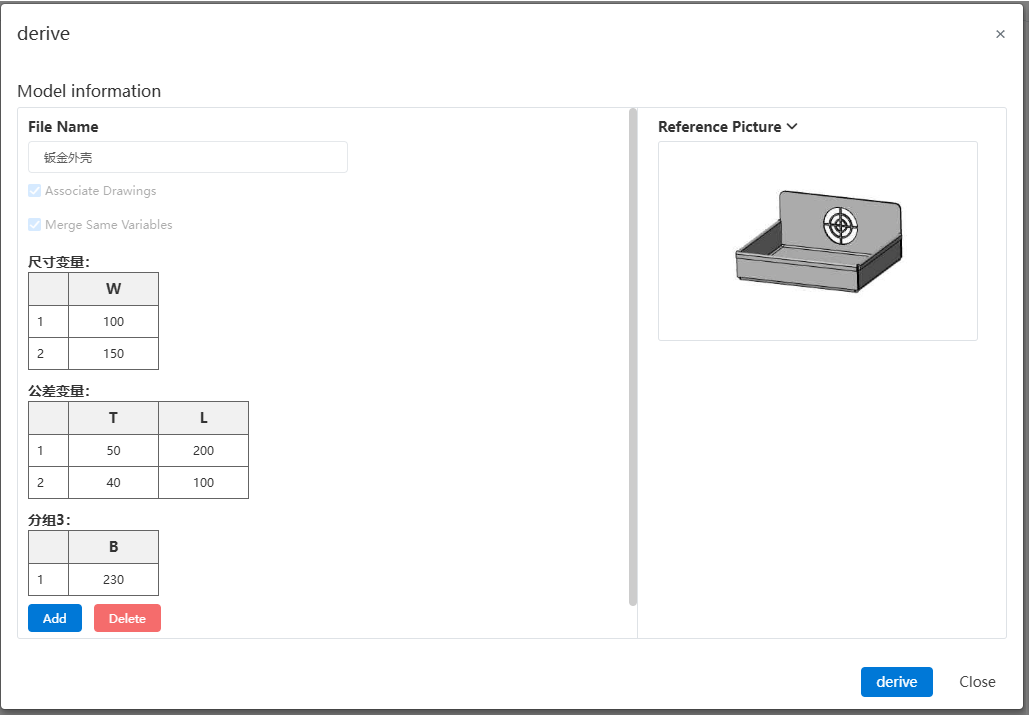
· Model information, Associated Drawing, Merge Same Variables, Reference Picture: Information set during model check-in. For viewing only and cannot be modified here.
· Variables: Displays the variables in the model, grouped. Click to select a set of parameters as the parameters for the derived model.
· Add: Adds a new set of parameters.
· Delete: Deletes a set of parameters.
· Derivative: After selecting parameters, click this button to derive a model based on the selected parameters and insert it into the current assembly.
· Close: Closes the interface.
← BOM Quick View Mode →