
# Features
# Extruded Boss/Base & Extruded Cut
Extruded Boss/Base and Extruded Cut now support the "From Point" option, allowing the extrusion to start from any picked point.
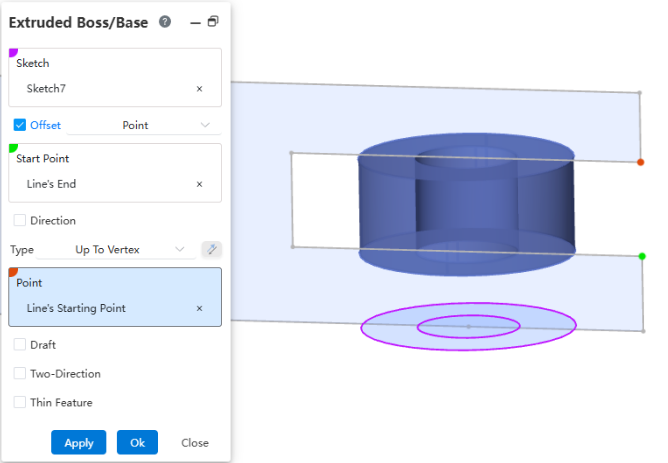
Usage:
- Open the "Extruded Boss/Base" or "Extruded Cut" command.
- Select the sketch to extrude.
- Check the Offset option, then select "Point" from the drop-down list.
- Set other extrusion parameters.
- Click OK to complete the creation.
# Extruded Cut
Extruded Cut adds a "Through All - Both" end condition, allowing quick cutting through the solid on both sides of the sketch.
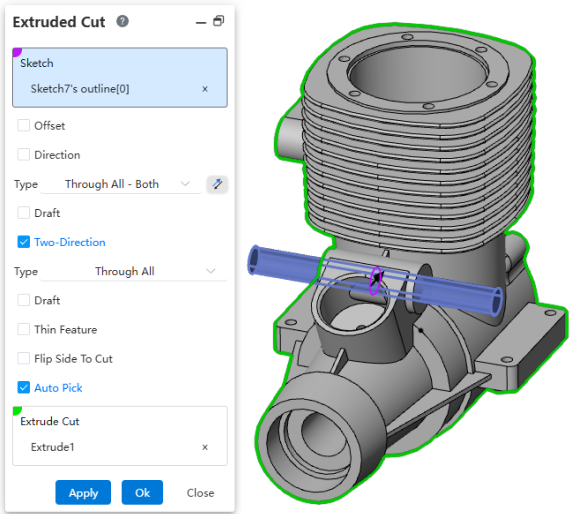
Usage:
- Open the "Extruded Cut" command.
- Select the sketch to extrude.
- Set the end condition to "Through All - Both". The system will automatically enable Direction 2 and set it to " Through All" (single side).
- Set other extrusion parameters.
- Click OK to complete the creation.
# Fillet
The Fillet command supports box selection, making it easier to quickly pick elements for filleting.
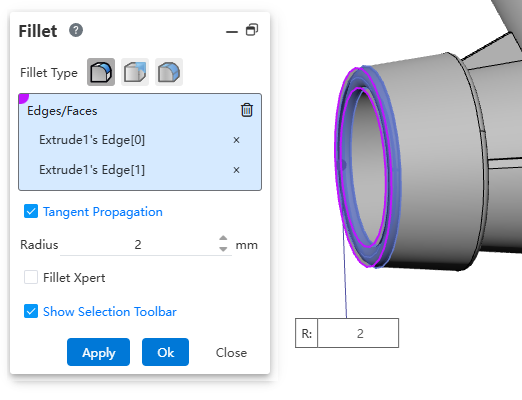
Usage:
- Open the "Fillet" command.
- Select the desired fillet type.
- In the viewport, hold down the left mouse button and drag to create a rectangular area that encloses the elements to be filleted.
- Set the radius and other parameters.
- Click OK to complete the creation.
Note: When box selecting, dragging from left to right will select only elements that are completely enclosed within the box; dragging from right to left will select both elements completely enclosed within the box and elements that intersect the box.
# Helix
The Helix command adds a "Variable Helix" type, used to create special helices such as the centerline of a variable-pitch spring.
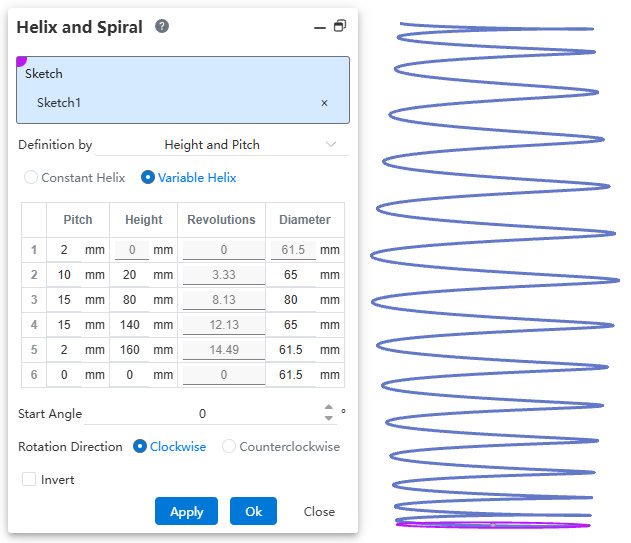
Usage:
- Open the "Helix and Spiral" command.
- Select a circular sketch.
- Select a definition method as needed, then choose the "Variable Helix" type.
- In the table, set the Pitch, Height, Revolutions, and Diameter parameters for each segment of the helix.
- Click the index number in the first column of the table to select a row of parameters. Right-click to delete or add parameter records.
- Set other parameters such as Start Angle.
- Click OK to complete the creation.
Note 1: The three parameters—Pitch, Height, and Revolutions—are interconvertible. Through the definition method setting, you can specify which two parameters to enter in the table; the remaining parameter will be automatically calculated based on the entered values.
Note 2: The diameter of the first segment is the diameter of the selected sketch circle and cannot be modified in the table. The diameters of subsequent segments can be modified in the table.